

Simplifiez la planification des réunions et des événements, personnalisez les affichages de votre calendrier et bien plus encore dans Microsoft Teams pour le bureau.
Contenu de cet article
Ouvrir votre calendrier
Pour commencer à utiliser votre calendrier Teams, sélectionnez Calendrier sur le côté gauche de Teams.
Modifier l’affichage de votre calendrier
Votre calendrier Teams affiche votre semaine de travail par défaut. Pour afficher d’autres vues, par exemple la semaine ou le mois entier, en sélectionnant Semaine de travail en haut de votre calendrier et en choisissant une.
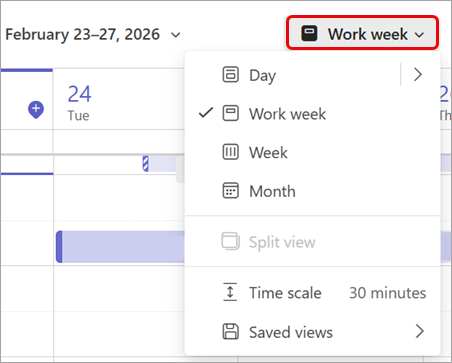
Vous pouvez également :
- Modifiez l’échelle de temps pour ajuster l’espace pour les détails de la réunion.
- Enregistrez les affichages de calendrier pour accéder ultérieurement à des dispositions spécifiques.
- Sélectionnez Filtrer
 pour personnaliser les types d’événements qui s’affichent dans votre calendrier.
 - Sélectionnez Afficher le volet de navigation
 pour afficher la vue mini-mois, afficher les calendriers d’autres personnes, créer des groupes de calendriers, etc.
 - Sélectionnez Autres options
 > Autres options de Microsoft Teams :Paramètres du Calendrier
 Paramètres pour modifier l’apparence de votre calendrier, ajuster les paramètres des événements et des réunions, etc.
Pour en savoir plus, consultez Personnaliser votre calendrier dans Microsoft Teams.
Afficher d’autres calendriers
Affichez plusieurs calendriers en même temps pour une coordination et une planification d’événements fluides. Consulter les calendriers de différentes personnes, les calendriers qui mettent en évidence les anniversaires ou les jours fériés, et bien plus encore.
- Dans le coin supérieur gauche, sélectionnez Afficher le volet de navigation .
- Sous Mes calendriers, créez et sélectionnez des groupes de calendriers pour afficher rapidement des affichages de calendriers spécifiques ultérieurement.
- Basculez entre les affichages fractionné et combiné pour afficher d’autres calendriers côte à côte ou intégrés dans un seul.
Pour en savoir plus, consultez Afficher d’autres calendriers dans Microsoft Teams.
Planifier et démarrer des réunions et des événements
Planifiez facilement des réunions et des événements de tous types à partir de votre calendrier Teams.
Pour planifier une nouvelle réunion ou un nouvel événement :
Sélectionnez Calendar icône
dans Teams.Sélectionnez Nouveau
 ou sélectionnez un créneau horaire dans votre calendrier.
- Sélectionnez la flèche déroulante en regard de Nouveau pour choisir parmi différents types de modèles d’événements. Sélectionnez Afficher tous les modèles pour en voir plus.
- Sélectionnez la flèche déroulante en regard de Nouveau
Sélectionnez Planificateur
 pour trouver une heure qui convient le mieux à chacun.
Entrez les détails d’une réunion ou d’un événement.
Sélectionnez Enregistrer
 .
.
Important
Lors de la planification d’une réunion Teams virtuelle, activez le bouton bascule Réunion Teams .
Pour participer à une réunion ou à un événement :
- Sélectionnez Calendar icône dans Teams.
- Sélectionnez une réunion ou un événement.
- Sélectionnez Rejoindre
 .
.
Pour en savoir plus sur la participation à une réunion Teams, consultez Rejoindre une réunion dans Microsoft Teams.
Trouvez le bon endroit pour vous rencontrer
Lorsque vous choisissez une salle ou un emplacement pour votre réunion, vous verrez plus de détails sur les salles disponibles, telles que la capacité et les spécifications techniques. Vous verrez également l’option Parcourir avec Recherche de Places.
Pour en savoir plus, consultez Prise en main de Microsoft Places.
Partager votre calendrier
Partagez votre calendrier avec d’autres personnes pour leur donner un aperçu de votre planning et de votre disponibilité.
Pour partager votre calendrier avec une personne en particulier :
- Sélectionnez Calendar icône dans Teams.
- Sélectionnez Autres options> Autres optionsPartager
 .
. - Entrez l’adresse e-mail ou le contact avec lequel vous souhaitez partager.
- En regard de leur nom, sélectionnez le menu déroulant pour choisir leurs autorisations.
- Sélectionnez Partager.
En fonction des stratégies définies par votre administrateur informatique, vous pouvez également gérer les autorisations d’autres personnes de votre organisation dans le menu déroulant ci-dessous.
Pour en savoir plus, consultez Partager votre calendrier dans Microsoft Teams.
Imprimer votre calendrier
Imprimez votre calendrier pour en distribuer des copies physiques ou gardez-le à portée de main pour les annotations et un accès facile.
Pour en savoir plus, consultez Partager votre calendrier dans Microsoft Teams.
Accéder rapidement aux détails des réunions passées
Accédez directement au récapitulatif d’une réunion précédente, à la conversation et à d’autres détails dans votre calendrier Teams.
Pour accéder à :
Sélectionnez Calendar icône
dans Teams.Sélectionnez une réunion enregistrée précédemment.
- Sélectionnez Récapitulatif
 pour afficher le récapitulatif de la réunion.
 - Sélectionnez l’icône d’onglet Chat Chat
 pour ouvrir la conversation de réunion.
- Sélectionnez Récapitulatif
Pour en savoir plus sur le résumé dans Teams, consultez Résumé de réunion dans Microsoft Teams.