

Organiser et planifier efficacement votre planification de travail en gérant votre calendrier Teams. Restez sur la bonne voie en répondant aux réunions et aux événements et en choisissant un affichage calendrier qui vous convient.
Répondre à une réunion
Informez les organisateurs de réunions de votre participation en répondant à l’avance à leur réunion.
Pour confirmer votre présence à une réunion :
Sélectionnez Calendar icône
 dans Teams.
Sélectionnez la réunion à laquelle vous souhaitez confirmer votre présence.
Sélectionnez RSVP.
Sélectionnez Accepter ou Refuser, Suivre ou Provisoire.
- Si la réunion fait partie d’une série, pointez sur votre réponse RSVP et sélectionnez Cet événement pour RSVP uniquement à cette occurrence ou Tous les événements de la série pour RSVP à toutes les réunions de cette série.
Ajouter une note à votre RSVP
Lorsque vous répondez votre présence, l’organisateur sera informé de votre réponse par e-mail.
Pour ajouter une note à votre réponse RSVP :
Sélectionnez Calendar icône
dans Teams.Sélectionnez la réunion à laquelle vous souhaitez confirmer votre présence.
Sélectionnez Afficher l’événement
 .
.Sélectionnez RSVP avec la note
 .
.Ajouter une note.
- Si vous n’avez pas choisi de réponse RSVP, choisissez-en une dans le menu déroulant.
Sélectionnez Confirmer.
Modifier l'affichage du calendrier
Par défaut, votre calendrier Teams affiche votre semaine de travail.
Sélectionnez Semaine de travail en haut de votre calendrier pour afficher le menu déroulant des différents affichages.
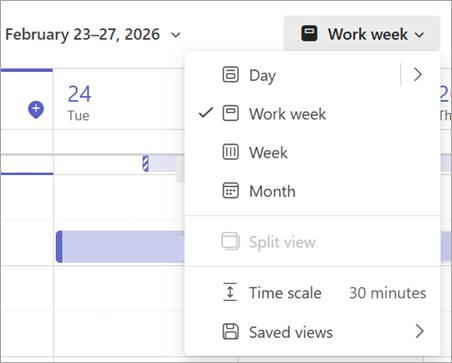
Jour affiche l’agenda pour une seule journée à la fois.
- Sélectionnez la flèche en regard de Jour pour personnaliser le nombre de jours que vous voyez à la fois.
Semaine de travail affiche la semaine du lundi au vendredi.
Semaine affiche la semaine entière.
Month vous montre le mois entier.
Afficher des dates différentes
Dans le coin supérieur gauche, vous trouverez le mois et l’année.
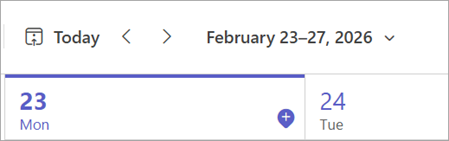
- Pour modifier l’affichage de votre calendrier à une date (passée ou future), sélectionnez le mois.
- Pour faire défiler par jour ou semaine (en fonction de l’affichage de votre calendrier), sélectionnez les flèches droite et gauche en regard du mois.
- Sélectionnez Aujourd’hui
 pour revenir à la date actuelle.
Remarque
Le calendrier affiche tout ce qui a été planifié dans Teams, Exchange et Outlook.