
Примітка.
Теми нарад доступні в рамках Teams, преміумверсія – додаткової ліцензії, яка надає додаткові функції, щоб зробити наради та події Teams більш персоналізованими, інтелектуальними та захищеними. Щоб отримати доступ до Teams, преміум-версії, зверніться до ІТ-адміністратора.
Теми нарад допомагають створити фірмову символіку на нарадах і подіях, інтегруючи візуальні ресурси (наприклад, емблему організації, зображення бренду та колірну тему) на екрани та поверхні нарад. Фірмовий інтерфейс наразі не підтримується в Кімнати Microsoft Teams.
Важливо
Корпорація Майкрософт не перевіряє право власності на емблеми або зображення бренду, пов'язані з темами нарад. Приєднуючись до нарад або подій з іншими організаціями, завжди перевіряйте автентичність організації, з якою ви зустрічаєтеся.
Тематичні екрани та поверхні
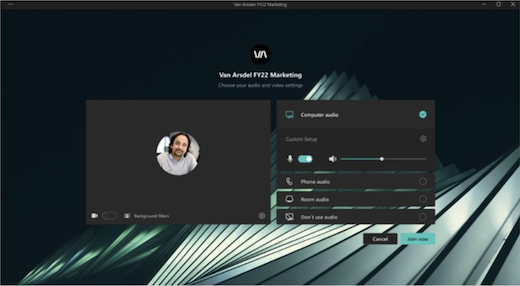
Підвищте впізнаваність бренду й створіть корпоративну культуру за допомогою тематичних екранів і поверхонь для нарад і подій. Перегляньте кольори компанії та зображення компанії, застосовані до екранів попереднього приєднання та фойє, елементів керування нарадою тощо.
Примітка.
Учасники, які ввімкнули висококонтрастне відображення в нарадах і подіях Teams, не бачитимуть фірмовий вміст.
Персоналізовані фони
Застосовуйте визначений організацією фон під час наради або події, щоб відобразити емблему або фірмову символіку компанії на тлі відеоканалу.
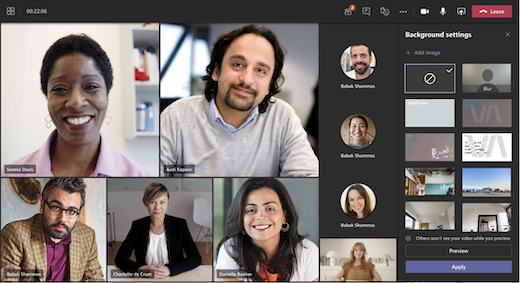
Дізнайтеся більше про змінення фону під час наради Teams.
Примітка.
Визначений організацією фон доступний лише для учасників із Teams, преміумверсія ліцензіями. Гості та анонімні учасники не бачитимуть цей фон у своїх параметрах.
Фірмові реакції
Наради виглядатимуть стильніше за допомогою фірмових реакцій, які ваша організація може налаштувати відповідно до елементів бренду або тем подій. Приєднавшись до наради, виберіть React в елементах керування нарадою, щоб відкрити фірмові реакції поряд зі звичайними реакціями Teams.
Якщо ваш ІТ-адміністратор передав фірмові реакції, вони будуть доступні для вас автоматично.
Увімкнення тем нарад
Щоб застосувати тему наради:
- Відкрийте Календар у Teams.
- Виберіть нараду або подію.
- Виберіть Переглянути подію.
- Натисніть кнопку Параметри.
- У розділі "Знаряддя для виробництва" ввімкніть перемикач "Тема наради".
- У розділі "Застосована тема наради" виберіть тему, яку потрібно застосувати.
- Натисніть кнопку Застосувати.
Щоб вимкнути теми нарад, поверніться до параметрів наради та вимкніть перемикач "Тема наради ".
Примітка.
Тема наради вимикається лише для певної наради або події, у якій її змінено. Інші залишаться тематичними за замовчуванням.
Якщо цей параметр для наради не відображається, можливо, теми наради недоступні в організації. Щоб отримати докладні відомості, зверніться до свого ІТ-адміністратора.


Примітка.
Учасники, які ввімкнули висококонтрастне відображення в нарадах і подіях Teams, не бачитимуть фірмовий вміст.